
Workstation Set Up - Dunsborough Physiotherapy Centre
Need a better Workstation Set Up?.........
Call Dunsborough Physio Centre for an on-site assessment today.
Phone: (08) 97553600
Call Dunsborough Physio Centre for an on-site assessment today.
Phone: (08) 97553600
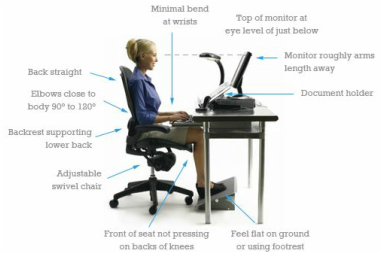 Workstation Set Up
Creating The Ideal Workstation
A correct workstation set up relies on a number of elements being addressed. If you require an on-site visit, one of our highly experienced physiotherapists can visit your workplace to ensure the most ergonomically accurate workstation set up.
Below is an effective guide to help you to set up your own workstation correctly including information regarding seating, desk, screen, keyboard, mouse, telephone and headset, footrest, laptops, storage areas, document holders, lighting and more .
A correct workstation set up relies on a number of elements being addressed. If you require an on-site visit, one of our highly experienced physiotherapists can visit your workplace to ensure the most ergonomically accurate workstation set up.
Below is an effective guide to help you to set up your own workstation correctly including information regarding seating, desk, screen, keyboard, mouse, telephone and headset, footrest, laptops, storage areas, document holders, lighting and more .
Setting up the workstation
 Workstation Set Up - Seating Workstation Set Up - Seating
Seating
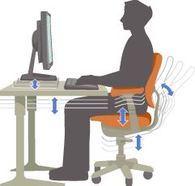
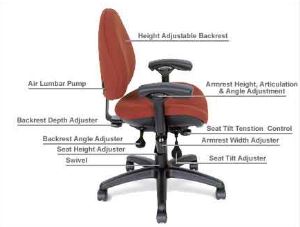
There are a number of different styles of office chair available and it is important to be aware of what to look for in a ergonomically sound chair. Office chairs should be highly adjustable to allow for an individualised position and to allow for changes in posture throughout the working day. The following features are essential:
|
 Workstation Set Up - Seating Workstation Set Up - Seating
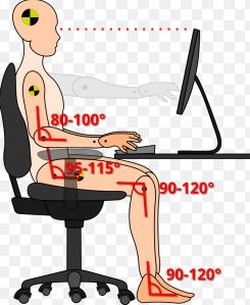
When seated at the desk with your shoulders in a relaxed position and your feet rested comfortably on the floor or on a footrest the elbow flexion angle should be between 80-100 degrees, the hip flexion angle between 90-115 degrees, the knee flexion angle between 90-120 degrees, the ankle dorsiflexion angle between 90-120 degrees.
While standard chairs may suit the majority of users, specific seating will be required for some users: seat bases with greater / smaller depth for tall / short workers, seat bases with greater width for those with wider hips, greater seat height adjustment for taller workers, seats designed to cope with greater load for heavier workers, more durable design for seats being used 24 hours a day (shift workers). |
 Workstation Set Up - Seating
Backrests
Backrests should support the upper and lower back and be adjustable in height. By raising or lowering the backrest the lumbar support should fit snugly against the lordotic curve of the lower back. Backrests should also have fore / aft adjustability. An angle of approximately 90-120 degrees between the trunk and thighs enables better spinal posture. This can be achieved by adjusting the backrest angle in combination with the seat base tilt. Where jobs require prolonged periods of sitting, the user may benefit from a ‘free-floating’ back support mechanism incorporated into the backrest. This enables the backrest to move through a pre-set range of movement as the back moves. The user is able to move through a range of acceptable postures while still remaining in a supported seated position.
Backrests should support the upper and lower back and be adjustable in height. By raising or lowering the backrest the lumbar support should fit snugly against the lordotic curve of the lower back. Backrests should also have fore / aft adjustability. An angle of approximately 90-120 degrees between the trunk and thighs enables better spinal posture. This can be achieved by adjusting the backrest angle in combination with the seat base tilt. Where jobs require prolonged periods of sitting, the user may benefit from a ‘free-floating’ back support mechanism incorporated into the backrest. This enables the backrest to move through a pre-set range of movement as the back moves. The user is able to move through a range of acceptable postures while still remaining in a supported seated position.
 Workstation Set Up - Armrests
Armrests
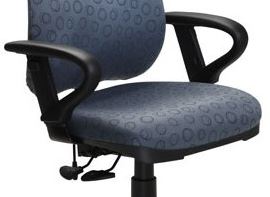
Chairs can be purchased with or without armrests. Armrests can provide forearm support and help the user when lowering into and rising from the chair. Forearms should rest comfortably on the armrests, with the shoulders relaxed. Armrests should be height adjustable and able to be turned inwards or outwards. Armrests should be removed if they prevent the user from getting close to the desk and at a comfortable distance from the keyboard and screen. Armrests should not interfere with use of the keyboard or mouse and should not prevent the user from turning the chair or getting up from the chair easily. Armrests can result in the user leaning sideways as they place weight through the armrest with their forearm (particularly if they are positioned too low) which can create lower back pain.
Chairs can be purchased with or without armrests. Armrests can provide forearm support and help the user when lowering into and rising from the chair. Forearms should rest comfortably on the armrests, with the shoulders relaxed. Armrests should be height adjustable and able to be turned inwards or outwards. Armrests should be removed if they prevent the user from getting close to the desk and at a comfortable distance from the keyboard and screen. Armrests should not interfere with use of the keyboard or mouse and should not prevent the user from turning the chair or getting up from the chair easily. Armrests can result in the user leaning sideways as they place weight through the armrest with their forearm (particularly if they are positioned too low) which can create lower back pain.
 Computer Workstation
Computer workstation
Desks: There are many different configurations for computer-based workstations available. Computer workstations should be designed to allow adequate height, depth and work surface to suit the user, the type of work they do and the equipment they use.
The workstation should have the following features:
Height adjustable workstations: height adjustability is another highly desirable workstation feature and all height adjustable workstations need to be to easily adjustable.
Sit / stand workstations allow the desktop to be used in either the seated or standing position: the workstation can be raised or lowered without any disruption to the placement of the equipment or desk items. Workers spending long periods at a desk will benefit greatly from a sit / stand desk. To provide for a standing position the desktop needs to be able to rise to at least 1100 mm. Height adjustability for seated positions is particularly important for those who are very tall / short.
Scalloped desks: a scalloped desktop (which has a shallow curve cut out at the centre allows for better forearm support, greater desktop space within acceptable reach zones, and better work postures when using multiple screens.
Desks: There are many different configurations for computer-based workstations available. Computer workstations should be designed to allow adequate height, depth and work surface to suit the user, the type of work they do and the equipment they use.
The workstation should have the following features:
- a flat smooth surface so that equipment such as keyboard and mouse does not compromise posture / vision
- a suitable height (e.g. 680-720 mm when measured from the top of the workstation to the floor)
- adequate clearance for legs under the desktop
- sufficient space under the desk to comfortably stretch legs.
Height adjustable workstations: height adjustability is another highly desirable workstation feature and all height adjustable workstations need to be to easily adjustable.
Sit / stand workstations allow the desktop to be used in either the seated or standing position: the workstation can be raised or lowered without any disruption to the placement of the equipment or desk items. Workers spending long periods at a desk will benefit greatly from a sit / stand desk. To provide for a standing position the desktop needs to be able to rise to at least 1100 mm. Height adjustability for seated positions is particularly important for those who are very tall / short.
Scalloped desks: a scalloped desktop (which has a shallow curve cut out at the centre allows for better forearm support, greater desktop space within acceptable reach zones, and better work postures when using multiple screens.
 Computer Screen Set Up
Computer Screen
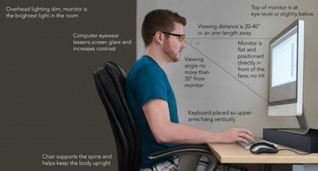
There is no single correct viewing position for the computer screen. If the screen is positioned effectively you should be able to maintain good posture (lightly retracted shoulder blades / chin lightly retracted) whilst the screen characters remain clearly visible.
A general guide to setting up the monitor:
Multiple computer monitors: the principles for setting up multiple monitors are the same as those for setting up a single monitor – make sure that the displays can be seen easily in a comfortable posture. If one monitor is used more frequently than the other place the primary monitor straight ahead to avoid twisting the body or neck to one side to view the display. Move the chair when using secondary monitors to avoid bending or twisting to see the displays. Lower the monitor height so that the top of the monitor is at eye level or lower. Position the most frequently used displays lower and central on the screen page for a large size monitor with multiple displays on the one screen page. If using multiple monitors with equal frequency arrange the monitors in an arc such that the screens are at equal viewing distance from the user. Position the screens right next to each other so that they are nearly touching. If using a combination of computers (e.g. a desktop monitor and a laptop computer) place the laptop on a docking station or stand so that the laptop display is at the same height as the desktop monitor. Place the laptop and desktop monitors at an equal viewing distance, particularly if the user is wearing reading glasses. If using monitors that are stacked vertically: position the most frequently used display slightly below eye level and position the less frequently viewed display/s above eye level.
Adjust the font size (or display on the screen) to be the same on each screen. Consider using a deeper desk to ensure that there is adequate room at the workstation for the various monitors plus any other tasks such as writing‐ the monitors can be placed at a longer working distance to avoid having to turn the head and body as much to see the displays.
There is no single correct viewing position for the computer screen. If the screen is positioned effectively you should be able to maintain good posture (lightly retracted shoulder blades / chin lightly retracted) whilst the screen characters remain clearly visible.
A general guide to setting up the monitor:
- screen height - the top of the screen should be set at eye level or lower this may reduce visual fatigue.
- Viewing distance - position the screen about one arm length away or slightly further. This may reduce visual fatigue. Trial different positions to determine the ideal viewing distance and height.
- Tilt - aim for a flat (vertical position) or a slight backward tilt. Do not tilt back the screen too far as this creates glare issues.
- Display - adjust the font size or display so that the content can be read easily.
Multiple computer monitors: the principles for setting up multiple monitors are the same as those for setting up a single monitor – make sure that the displays can be seen easily in a comfortable posture. If one monitor is used more frequently than the other place the primary monitor straight ahead to avoid twisting the body or neck to one side to view the display. Move the chair when using secondary monitors to avoid bending or twisting to see the displays. Lower the monitor height so that the top of the monitor is at eye level or lower. Position the most frequently used displays lower and central on the screen page for a large size monitor with multiple displays on the one screen page. If using multiple monitors with equal frequency arrange the monitors in an arc such that the screens are at equal viewing distance from the user. Position the screens right next to each other so that they are nearly touching. If using a combination of computers (e.g. a desktop monitor and a laptop computer) place the laptop on a docking station or stand so that the laptop display is at the same height as the desktop monitor. Place the laptop and desktop monitors at an equal viewing distance, particularly if the user is wearing reading glasses. If using monitors that are stacked vertically: position the most frequently used display slightly below eye level and position the less frequently viewed display/s above eye level.
Adjust the font size (or display on the screen) to be the same on each screen. Consider using a deeper desk to ensure that there is adequate room at the workstation for the various monitors plus any other tasks such as writing‐ the monitors can be placed at a longer working distance to avoid having to turn the head and body as much to see the displays.
 Keyboard Set Up
Keyboard
When setting up the keyboard, the following guidelines apply:
When setting up the keyboard, the following guidelines apply:
- position the keyboard straight in front of the you to avoid twisting the neck or body.
- Use a keyboard without a numeric key pad to reduce the width of the keyboard: this allows the mouse to be positioned closer to the body.
- Adjust the angle and height of the keyboard by folding or unfolding the small legs under the keyboard.
- To have forearm support, position the keyboard and mouse away from the front edge of the desk. The majority of the forearm is supported on the desk with the fingers sitting comfortably on the middle row of the keys.
- If sitting at a scalloped desk the keyboard and mouse can be closer to the edge of the desk, as the forearms can be supported by the desk shaping around the body.
 Mouse Set Up
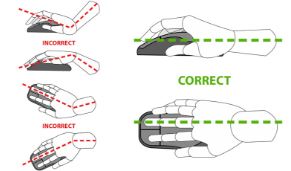
The mouse Tips when using a mouse or other pointing device:
- keep the device at the same height and as close to the keyboard as possible.
- Ensure the mouse fits comfortably in the hand to minimise any undue pressure on the wrist and forearm.
- Consider operating the device with the non-dominant hand.
- Change the operating preferences in your computer settings: set the tracking speed of the mouse to suit your needs.
- Make sure you have enough desk space and a flat smooth surface so that the wrist can be kept straight.
- Take hands off the keyboard and mouse when not in use. This assists in reducing muscle fatigue from hovering over the equipment.
- Take breaks from the computer to do other jobs that don’t involve using the mouse.
- Use keyboard short cuts to decrease use of the device.
- If the device is used for long periods, move the device towards the centre of the desk and temporarily reposition the keyboard.
 Telephone / Headset Use
Telephones and Headsets
Telephones should be positioned within the primary work zone to reduce repetitive reaching if they are used frequently. Telephone headsets should be used when there is sustained phone use or workers are required to write or use the computer at the same time. Wireless headsets or appropriately corded headsets allow the user to stand up and move around their work station at suitable times during or between phone calls.
Telephones should be positioned within the primary work zone to reduce repetitive reaching if they are used frequently. Telephone headsets should be used when there is sustained phone use or workers are required to write or use the computer at the same time. Wireless headsets or appropriately corded headsets allow the user to stand up and move around their work station at suitable times during or between phone calls.
 Footrest
Footrests
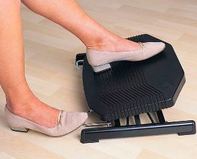
A footrest should be used if the user’s feet cannot be placed flat on the floor. The correct height of the footrest is equivalent to the distance between the feet and the floor after adjusting the seat height appropriately. A footrest should have a non-slip surface and be large enough for both feet to rest comfortably (about 30 x 30 cm). The footrest should have an adjustable resting surface (10-20 degrees) to allow a comfortable ankle position when feet are resting on it. It should be stable enough so it does not slide or move.
A footrest should be used if the user’s feet cannot be placed flat on the floor. The correct height of the footrest is equivalent to the distance between the feet and the floor after adjusting the seat height appropriately. A footrest should have a non-slip surface and be large enough for both feet to rest comfortably (about 30 x 30 cm). The footrest should have an adjustable resting surface (10-20 degrees) to allow a comfortable ankle position when feet are resting on it. It should be stable enough so it does not slide or move.
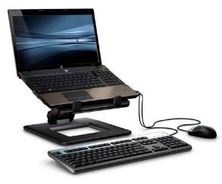 Laptop Set Up
Laptop computers
Laptops are designed for short-term or mobile use. They are very convenient but can challenge good working postures. When using a laptop for significant periods, or when being used as a desk top replacement, use separate components (full sized peripherals) that allow for better posture and can be independently adjusted. Components include docking stations, external monitors, external keyboard and mouse, and laptop stands.
Laptops are designed for short-term or mobile use. They are very convenient but can challenge good working postures. When using a laptop for significant periods, or when being used as a desk top replacement, use separate components (full sized peripherals) that allow for better posture and can be independently adjusted. Components include docking stations, external monitors, external keyboard and mouse, and laptop stands.
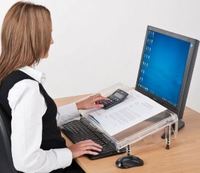 Document Holder
Document Placement
Poorly placed documents on the desk may lead to muscle discomfort or eye strain. An angled reading / writing board or document holder can improve neck posture when reading or writing for significant periods.
Options:
Poorly placed documents on the desk may lead to muscle discomfort or eye strain. An angled reading / writing board or document holder can improve neck posture when reading or writing for significant periods.
Options:
- place the documents as close as possible to the screen with the documents at the same height and viewing distance as the screen.
- Move the monitor to one side and place the document in front of you, at the same height and viewing distance as the monitor when inputting data.
- Prop up the documents directly in front of you between the monitor and keyboard on an angled reading board.
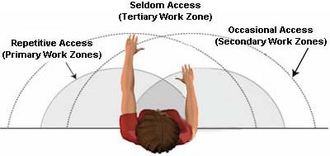 Work Zones
Organising the desk top
Organise the work materials and accessories into primary and secondary work zones to improve efficiency, create more working space and reduce the distance and frequency of reaches. Place items used frequently or for long periods in a semicircle in the primary work zone (usual work area), no further away than the distance between the elbow and knuckles when seated with the upper arms close to the body. Place items used occasionally or for short periods in the secondary work zone, up to one arm length away when in a seated position. Place materials and equipment used very seldom in the area beyond the secondary zone.
Organise the work materials and accessories into primary and secondary work zones to improve efficiency, create more working space and reduce the distance and frequency of reaches. Place items used frequently or for long periods in a semicircle in the primary work zone (usual work area), no further away than the distance between the elbow and knuckles when seated with the upper arms close to the body. Place items used occasionally or for short periods in the secondary work zone, up to one arm length away when in a seated position. Place materials and equipment used very seldom in the area beyond the secondary zone.
Storage areas
Workstation storage areas include overhead cupboards, bookshelves, filing cabinets and desk drawers. Storage areas - tips: use storage areas for items that are not used very often. Store heavy objects such as boxes of photocopy paper between shoulder and knee height to avoid excessive reaching and twisting. Do not clutter leg space under the desk - keep it free to vary leg posture during the day.
Workstation storage areas include overhead cupboards, bookshelves, filing cabinets and desk drawers. Storage areas - tips: use storage areas for items that are not used very often. Store heavy objects such as boxes of photocopy paper between shoulder and knee height to avoid excessive reaching and twisting. Do not clutter leg space under the desk - keep it free to vary leg posture during the day.
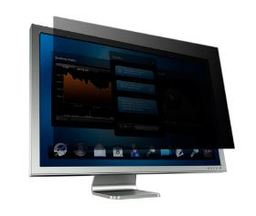 Workstation Set Up - Lighting / Glare
Lighting / Glare
Lighting Levels: good lighting allows users to view the screen and documents easily without using awkward postures or straining the eyes from glare, shadowing or reflections on the screen. Check lighting levels and lighting distractions at various times throughout hours of work. Higher lighting levels are required for writing and reading tasks, particularly more detailed work. Lower lighting levels are may be suitable for tasks that are predominantly computer based. Keep lighting levels similar for the work area and general environment. Clean and maintain fluorescent tubes and light fittings regularly to help maintain lighting levels.
Glare: glare may be experienced by light shining directly into the eyes or reflected from other surfaces such as the screen, desktop or walls. This can cause eye fatigue and headaches. With the increasing size of monitors, the larger surface areas of these monitors may increase reflected glare.
Ways to avoid glare:
Ways to reduce shadowing/ improve low light levels: remove barriers to light falling on the work area such as overhead shelving to reduce shadowing. Adjust the brightness of lighting. Redirect available lighting. Maintain lights in good working order including replacing broken or flickering lights as soon as possible. Re-position the workstation. Provide supplementary lighting e.g. desk lamp - place the lamp to the left if right handed so the lamp light shines in front from left to right - place the lamp to the right if left handed - avoid placing desk lamps directly in front of the user.
Lighting Levels: good lighting allows users to view the screen and documents easily without using awkward postures or straining the eyes from glare, shadowing or reflections on the screen. Check lighting levels and lighting distractions at various times throughout hours of work. Higher lighting levels are required for writing and reading tasks, particularly more detailed work. Lower lighting levels are may be suitable for tasks that are predominantly computer based. Keep lighting levels similar for the work area and general environment. Clean and maintain fluorescent tubes and light fittings regularly to help maintain lighting levels.
Glare: glare may be experienced by light shining directly into the eyes or reflected from other surfaces such as the screen, desktop or walls. This can cause eye fatigue and headaches. With the increasing size of monitors, the larger surface areas of these monitors may increase reflected glare.
Ways to avoid glare:
- Position the computer workstation so that your line of sight is parallel to the window.
- Try to locate computer workstations between rows of overhead lights.
- Control natural light from the windows e.g. use venetian blinds (best angled up rather than down).
- Ensure all work surfaces and office fittings have non-reflective surfaces.
- Adjust the angle of the screen so that it is 90 degrees (a right angle) to the work surface. Avoid tilting the screen towards the ceiling.
- Adjust brightness and contrast on the monitor.
- Use a light-coloured background on the monitor.
- Re-position the monitor and keyboard to minimise the amount of glare on equipment.
- Use an anti-glare screen or anti-glare glasses.
Ways to reduce shadowing/ improve low light levels: remove barriers to light falling on the work area such as overhead shelving to reduce shadowing. Adjust the brightness of lighting. Redirect available lighting. Maintain lights in good working order including replacing broken or flickering lights as soon as possible. Re-position the workstation. Provide supplementary lighting e.g. desk lamp - place the lamp to the left if right handed so the lamp light shines in front from left to right - place the lamp to the right if left handed - avoid placing desk lamps directly in front of the user.
Alter Your Postures Regularly
Don’t forget to change postures throughout the day. There is no perfect computer workstation set up that can be used all day. It is important to change posture or to do something that uses different muscles many times throughout the day. Extended periods in similar postures can lead to fatigue or overloading parts of the body and can contribute to injuries such as sprains and strains. There are many other benefits to moving and changing postures regularly through the work shift. It is better to take several short breaks rather than one long one. Ways to do this include: rotating and encouraging a variety of work tasks and short regular breaks so that there is variety in posture throughout the day. For example, make a few phone calls, conduct an administrative task away from the workstation or undertake filing after a period of typing. Use opportunities to move between sitting and standing positions at the workstation. Take micro pauses e.g. moving the hand off the mouse or keyboard when not in use. Place the printer, scanner and photocopier away from the workstation. Use sit / stand workstations.
Don’t forget to change postures throughout the day. There is no perfect computer workstation set up that can be used all day. It is important to change posture or to do something that uses different muscles many times throughout the day. Extended periods in similar postures can lead to fatigue or overloading parts of the body and can contribute to injuries such as sprains and strains. There are many other benefits to moving and changing postures regularly through the work shift. It is better to take several short breaks rather than one long one. Ways to do this include: rotating and encouraging a variety of work tasks and short regular breaks so that there is variety in posture throughout the day. For example, make a few phone calls, conduct an administrative task away from the workstation or undertake filing after a period of typing. Use opportunities to move between sitting and standing positions at the workstation. Take micro pauses e.g. moving the hand off the mouse or keyboard when not in use. Place the printer, scanner and photocopier away from the workstation. Use sit / stand workstations.
Exercises for Office Workers
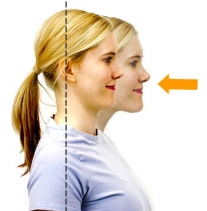
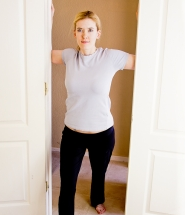
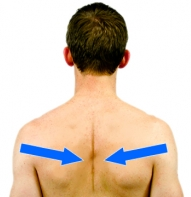


Go to our "Physio Exercises" page (click / tap here) for numerous exercises which may be of benefit if you spend a large part of your working day at a workstation. Listed below are some of the exercises which may be helpful in preventing pain and stiffness.
- Chin Retraction
- Scapular Retraction
- Chest Doorway Stretch
- Upper Trapezius Stretch
- Levator Scapulae Stretch
- Cervical Flexibility Exercises (all)
- Lumbar / Thoracic Flexibility Exercises (all)
- Wrist Flexor Stretch
- Wrist Extensor Stretch
- Elastic Band Rows
- Core Exercises - Fitball
- Core Exrcises - Floor Based